

ChatGPT Plugin
Ask about your team's training and prepare manager tasks from a ChatGPT conversation.
You'll use ChatGPT's Add custom MCP server option to connect your existing Nest Learn manager account. MCP is the name ChatGPT uses for this type of connection.
Before you start
Use ChatGPT in a web browser on a computer for these steps. Keep this guide open in another tab so you can follow along. Select any screenshot to see it larger.
Your usual permissions applyChatGPT uses your existing Nest Learn permissions. Home Managers keep their access to assigned Homes and permitted Bank Staff tasks. Provider Senior Managers work across their Provider.
Connect in five steps
1. Open Plugins in ChatGPT
- Sign in to ChatGPT.
- Select Plugins in the left sidebar, as shown below. You can also open Plugins directly.
You should see the Plugins page, with options for public and personal plugins.
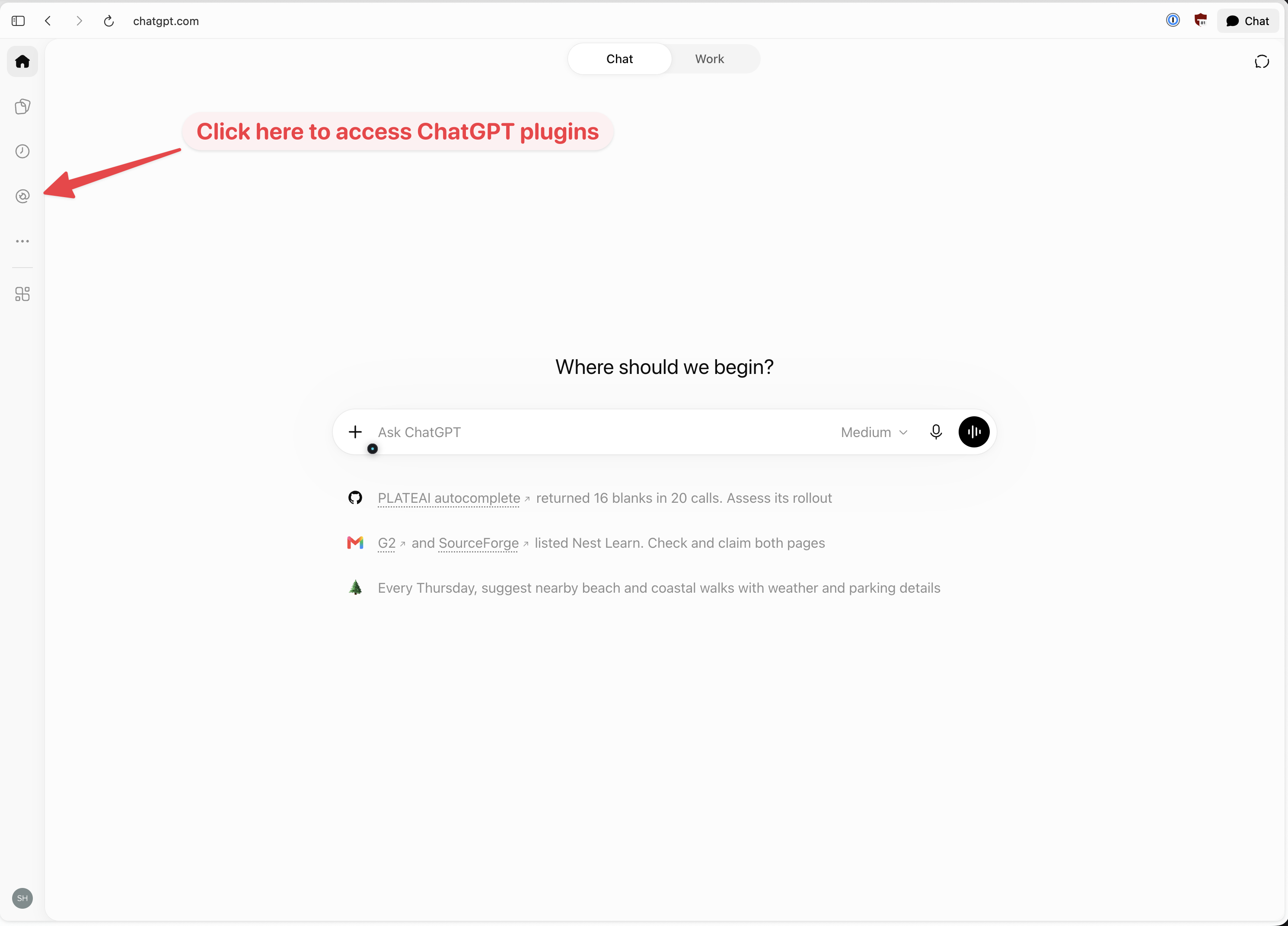
Open Plugins from the left sidebar.
2. Add a custom MCP server
- Open the Add menu at the top right. Some ChatGPT layouts show a plus button.
- Select Add custom MCP server.
A form should open where you can name the connection and enter its address.
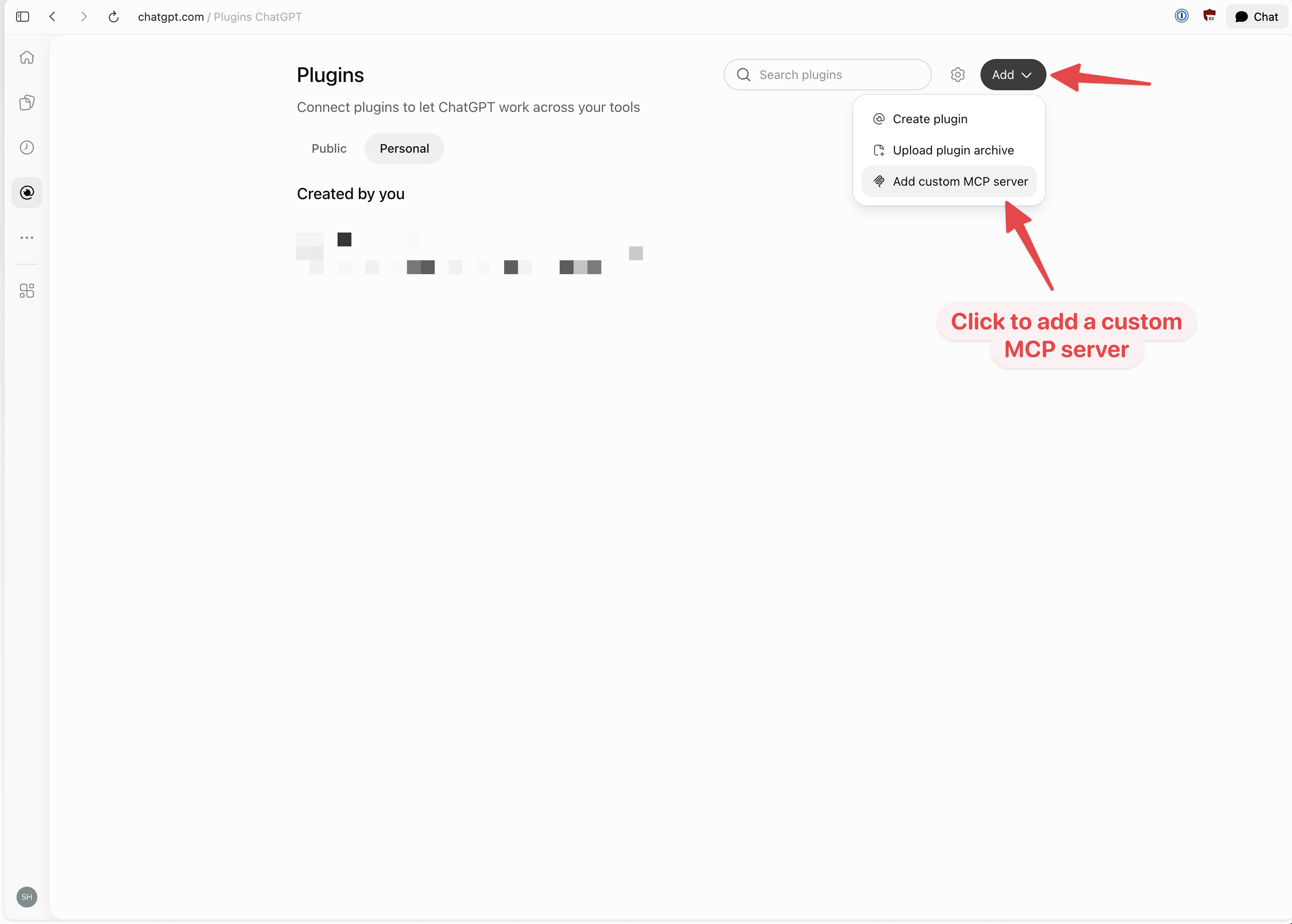
Choose Add, then Add custom MCP server.
3. Enter the Nest Learn connection details
- Enter Nest Learn in Name. The description and icon are optional.
- Under Connection, keep Server URL selected and paste this address:
https://mcp.learn.nest-care.co.uk/mcp- Choose OAuth for Authentication. This lets you sign in with your own Nest Learn account and approve the connection.
- Leave Advanced OAuth settings unchanged. You do not need to enter an API key, client ID or client secret for this setup.
- Read ChatGPT's connection warning. When you are ready, tick I understand and want to continue and select Create as a plugin.
Include /mcp at the end of the address. This is a separate address from the Nest Learn website you normally sign in to.
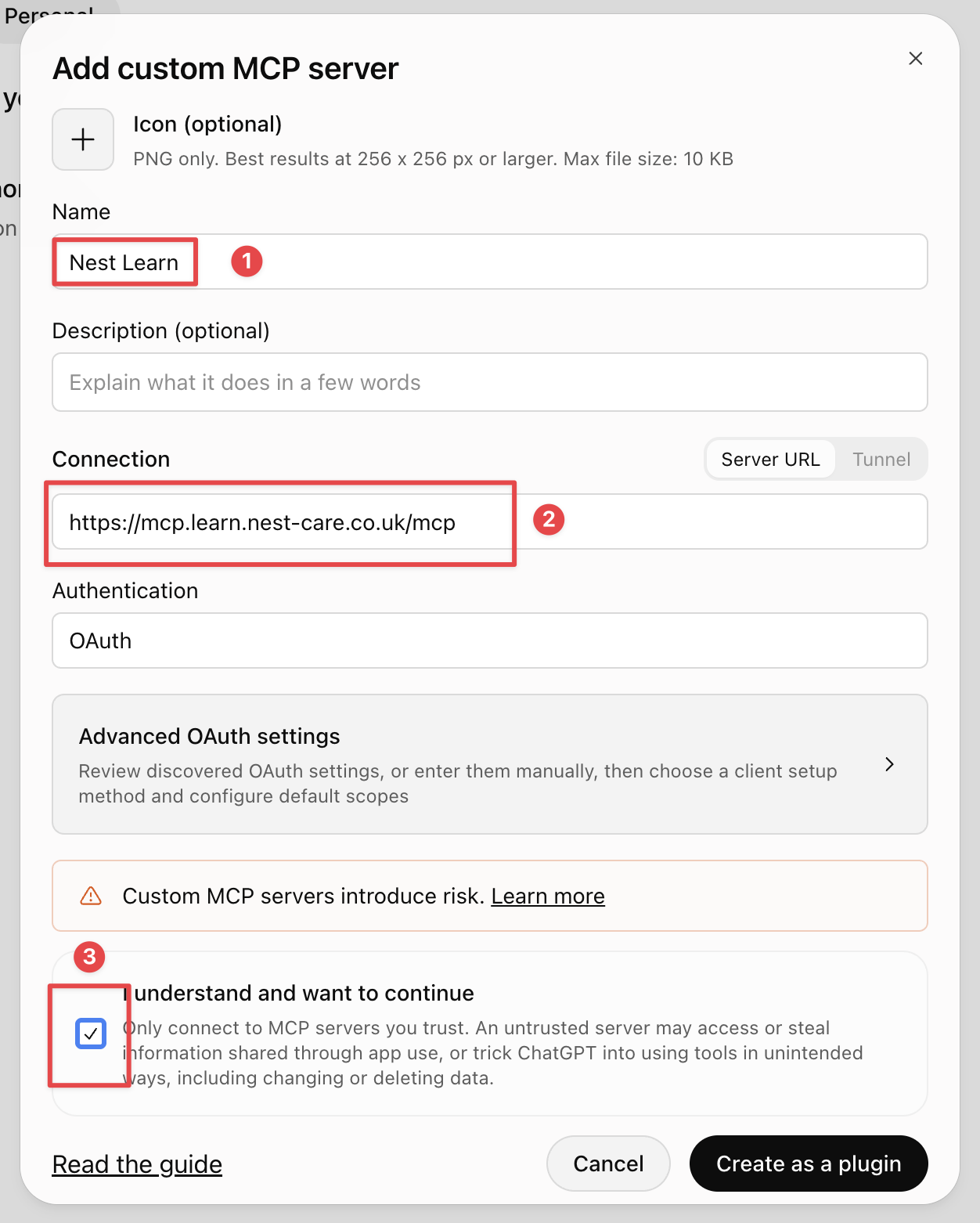
Enter the name and connection address, keep OAuth selected, then create the plugin.
4. Sign in to Nest Learn and allow access
- If asked, sign in on the Nest Learn sign-in page with your normal manager login.
- On Connect ChatGPT to Nest Learn, check the email address shown. If it is the wrong account, select Use a different account before continuing.
- Read what the connection can do, then select Allow access if you want to connect.
You should return to ChatGPT. Enter your password only on the Nest Learn sign-in page. You do not need to paste it into a chat.
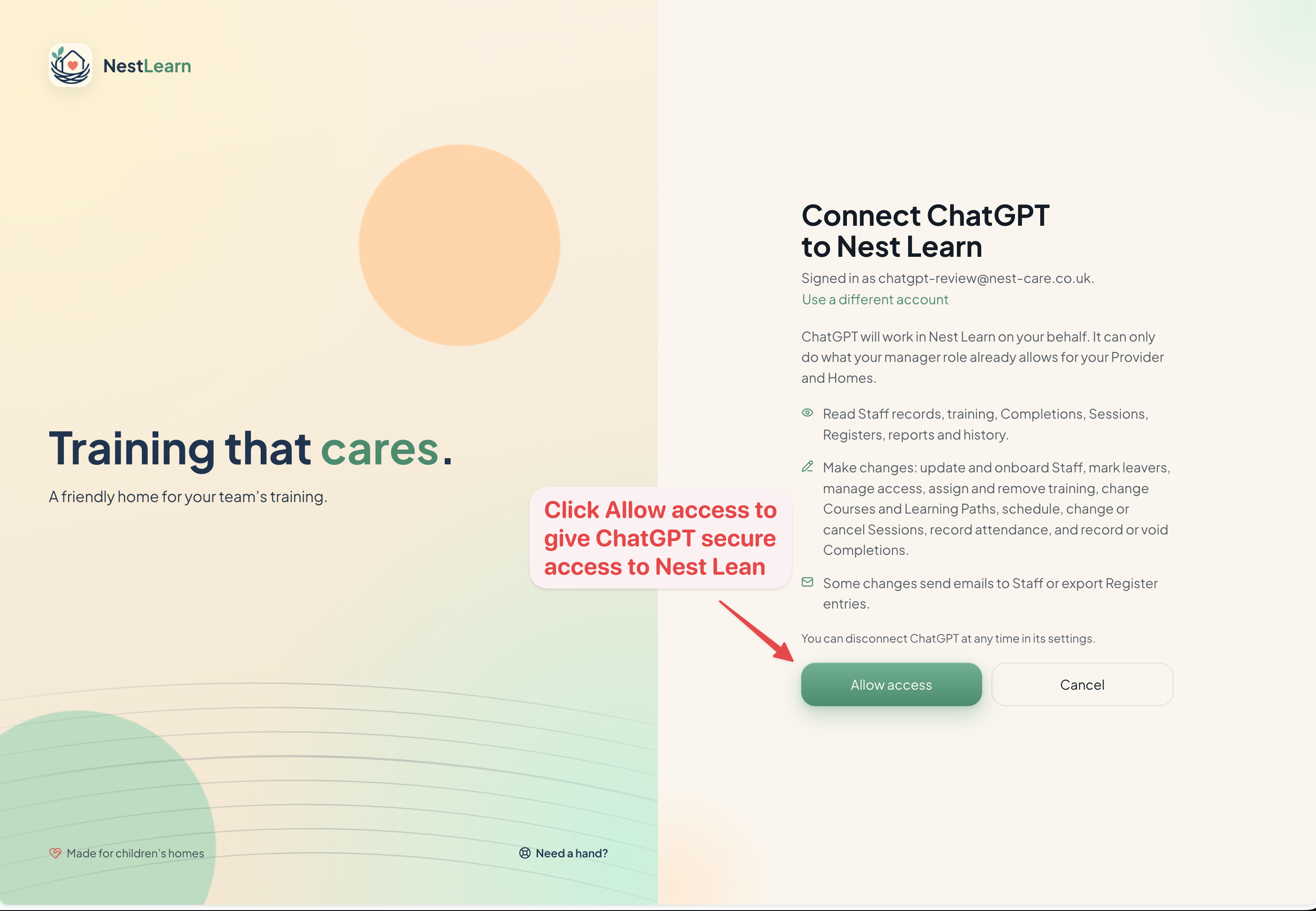
Check your own account is shown before selecting Allow access. This screenshot uses a demo account.
5. Select Nest Learn in a new chat
- Back in ChatGPT, find Nest Learn under your Personal plugins. If it offers an install or plus button, select it to install the plugin.
- Start a new chat.
- Type @ in the message box and select Nest Learn from the suggestions.
- Enter a question and send it.
You should see Nest Learn selected in the message box, as in the screenshot below. Selecting the suggestion connects the question to the plugin; typing its name as ordinary text is not the same step.
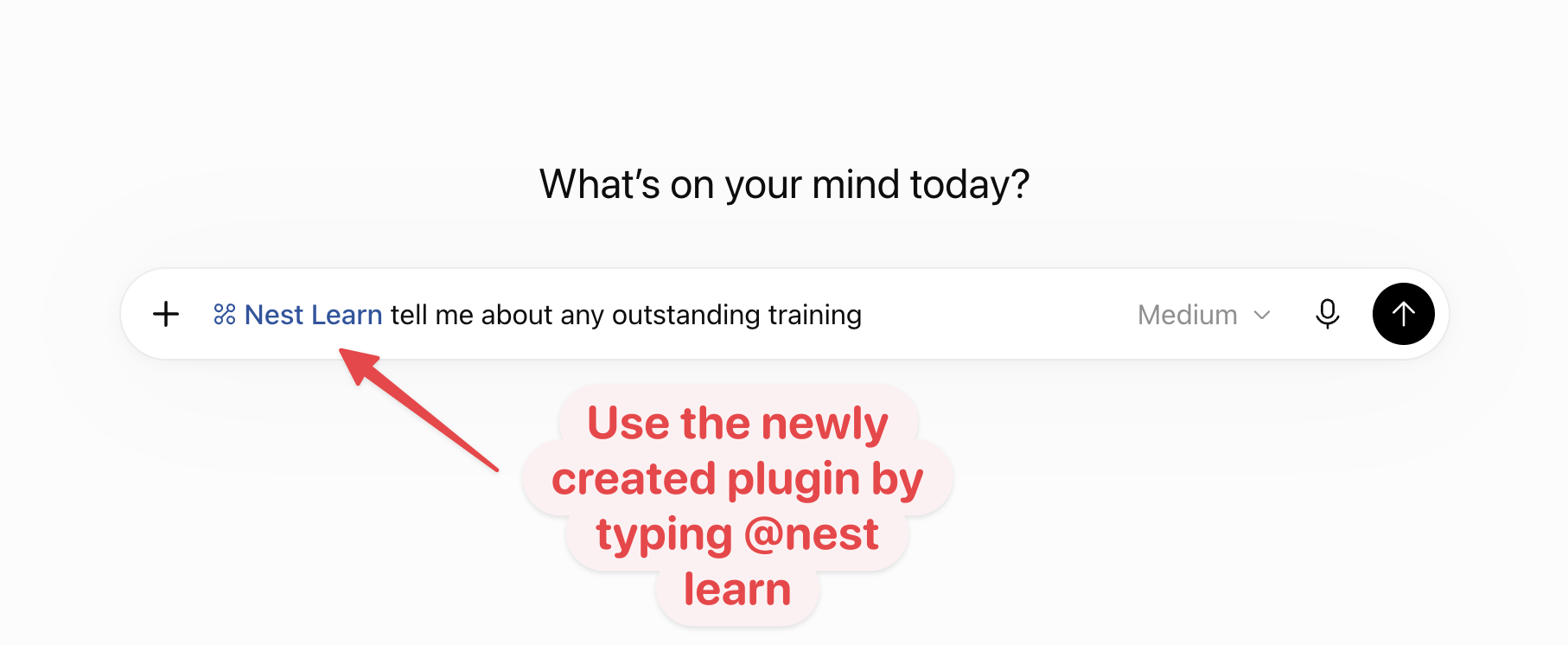
Type @, select Nest Learn, then ask your question.
Try a question
Start by checking training so you can see the connection working:
Tell me about any outstanding training for my Home. Show the priorities and suggested next steps. Don't change any records.If you manage more than one Home, name the Home you want. If your login has access to more than one Provider, name the organisation too. The connection handles one Provider at a time.
See an example answer using demo records
This example shows a training summary followed by suggested next actions. The names and figures are from Nest Learn's demo account. Your answer will use the records you have access to, and its wording and layout may differ.
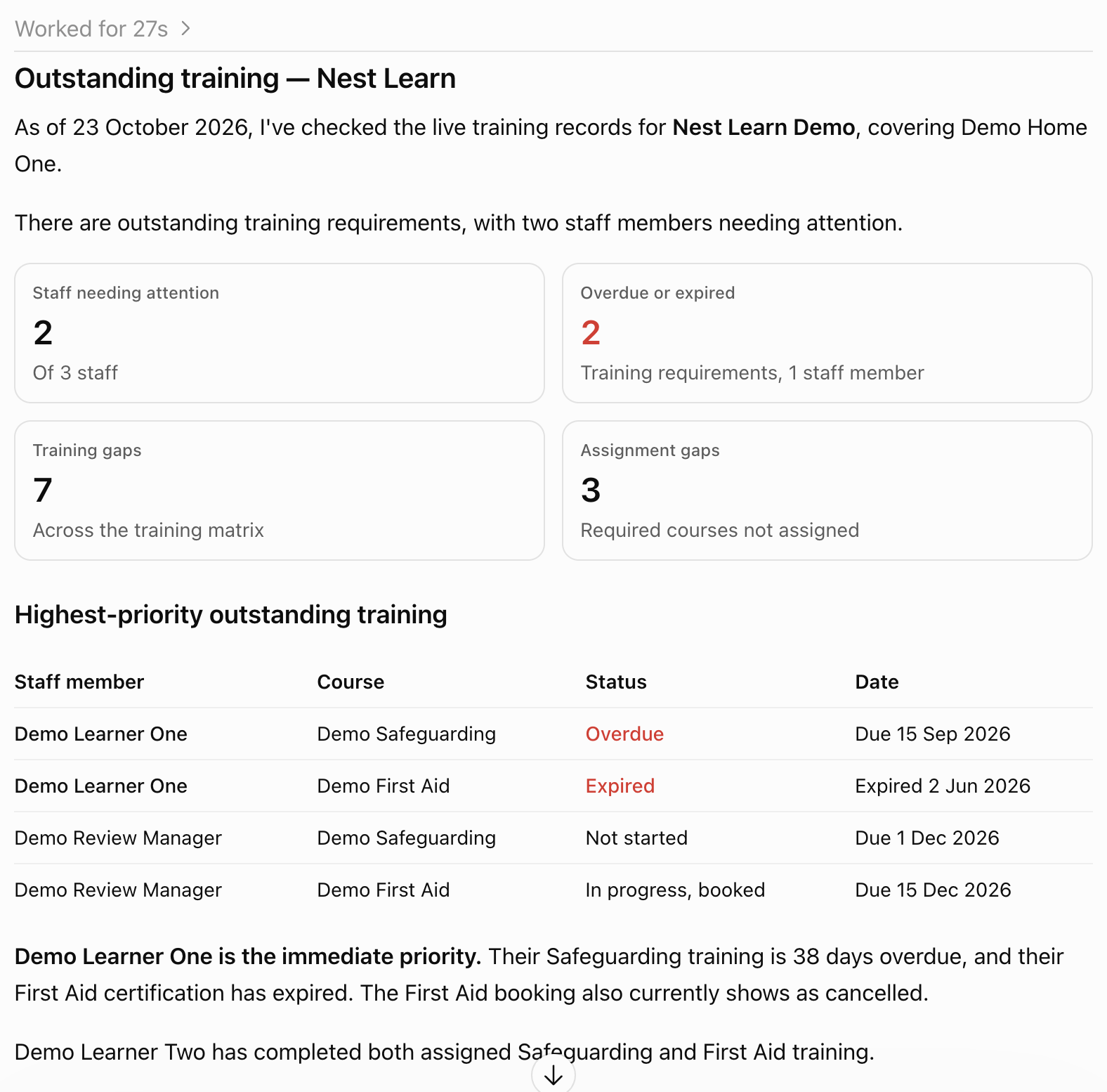
An example summary of outstanding training, using demo records.
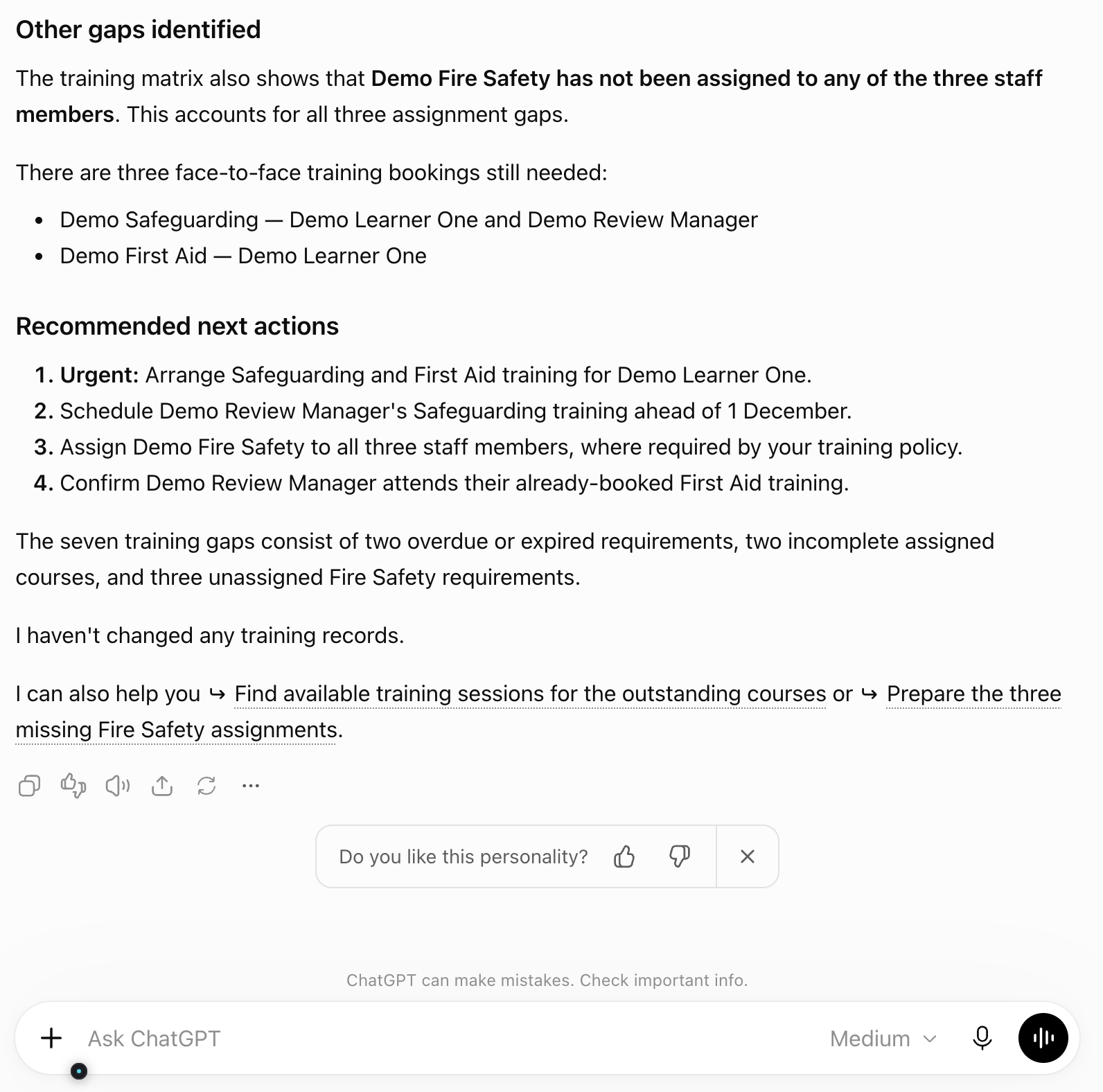
The same answer continues with gaps and suggested next steps.
More questions to try
Replace anything in square brackets with your own details, and select Nest Learn in the message box before sending.
Which training is overdue or expired in [Home name]? Group it by staff member and show the next action. Don't change any records.Which face-to-face courses are still waiting for a booking in [Home name]?Find [staff member's name] and summarise their assigned training, due dates and completed courses.Show the recorded training history for [staff member's name].Prepare to assign [course name] to [staff member's name], due on [date]. Show me what will change before saving anything.Find available sessions for [course name] and show me the dates and venues before making a booking.Before you approve a change
Nest Learn requires a preview before a change can be saved. For example, assigning training should first show who is included, the course and the due date.
- Ask ChatGPT to prepare the change and show the preview.
- Check the people, Home, course, dates and expected effect. Approve only when those details are right. ChatGPT may also show a permission prompt.
- Read the result after the change. If it is unclear whether something saved, check the record in Nest Learn before trying again.
Check any email effectsSome changes can send training emails to staff. Check the preview for email information before approving the action.
Use the Dashboard and Training Matrix to check important figures or follow up on a record in Nest Learn. Another authorised manager still needs to record attendance and manage evidence on your own training record.
Help with the connection
I can't find Add custom MCP server
- Open ChatGPT Plugins in a web browser and check the Add menu or plus button.
- Check that you are in the ChatGPT account or workspace you intend to use.
- If the option is still missing, ask your ChatGPT workspace administrator whether custom MCP servers are allowed for your account.
The options available can depend on your account and workspace settings.
ChatGPT cannot connect to the server
- Check that Server URL is exactly
https://mcp.learn.nest-care.co.uk/mcp, including the final /mcp and with no spaces. - Check that Authentication is set to OAuth.
- Complete the Nest Learn sign-in and Allow access screens. If the browser blocks the sign-in window, allow it for this connection.
If it still fails, contact Nest with the message shown and the step you reached. Keep passwords and sign-in codes out of your message.
Nest Learn says my account cannot connect
This connection is for active Home Managers and Provider Senior Managers. A staff-only or Platform Admin login cannot use this manager connection.
- Select Use a different account if you are signed in with the wrong login.
- If your own manager login is refused, ask a Provider Senior Manager to check your access in Permissions, or contact Nest.
Nest Learn does not appear when I type @
- Open Plugins, then Personal, and find Nest Learn.
- Complete any install or sign-in step still offered there.
- Start a new chat, type @, and select Nest Learn from the suggestions.
If your workspace manages plugin access, ask its administrator to check availability.
I can't see a Home or staff member I expected
- Name the Home, and the Provider if you have access to more than one organisation.
- Check you connected the correct Nest Learn account.
- Ask a Provider Senior Manager to check your current Home and manager permissions if access is still missing.
The connection uses your current Nest Learn permissions each time. A change to your access can change what ChatGPT is allowed to see or do.
Can I upload certificates or reset passwords here?
Use the Nest Learn application for certificate uploads and downloads, and for password resets. This manager connection does not transfer certificate files or return passwords in chat.
See Attendance and certificates for uploading files, or Signing in for login help.
How do I stop ChatGPT accessing Nest Learn?
Disconnect the Nest Learn account in ChatGPT's connection settings. Your training records remain in Nest Learn.
Signing out of Nest Learn in your browser does not disconnect ChatGPT. If you also uninstall the plugin, check that its separate MCP connection has been disconnected too.
For ChatGPT's own setup guidance, see OpenAI's Add custom MCP server and plugin guide.
Related help
Updated about 10 hours ago