

Onboarding staff
Create a staff profile, check dates and access, and choose initial Learning Paths.
Open Staff, then Home staff, and select Onboard staff at the top right. The five-step wizard shows a preview of the profile as you build it.
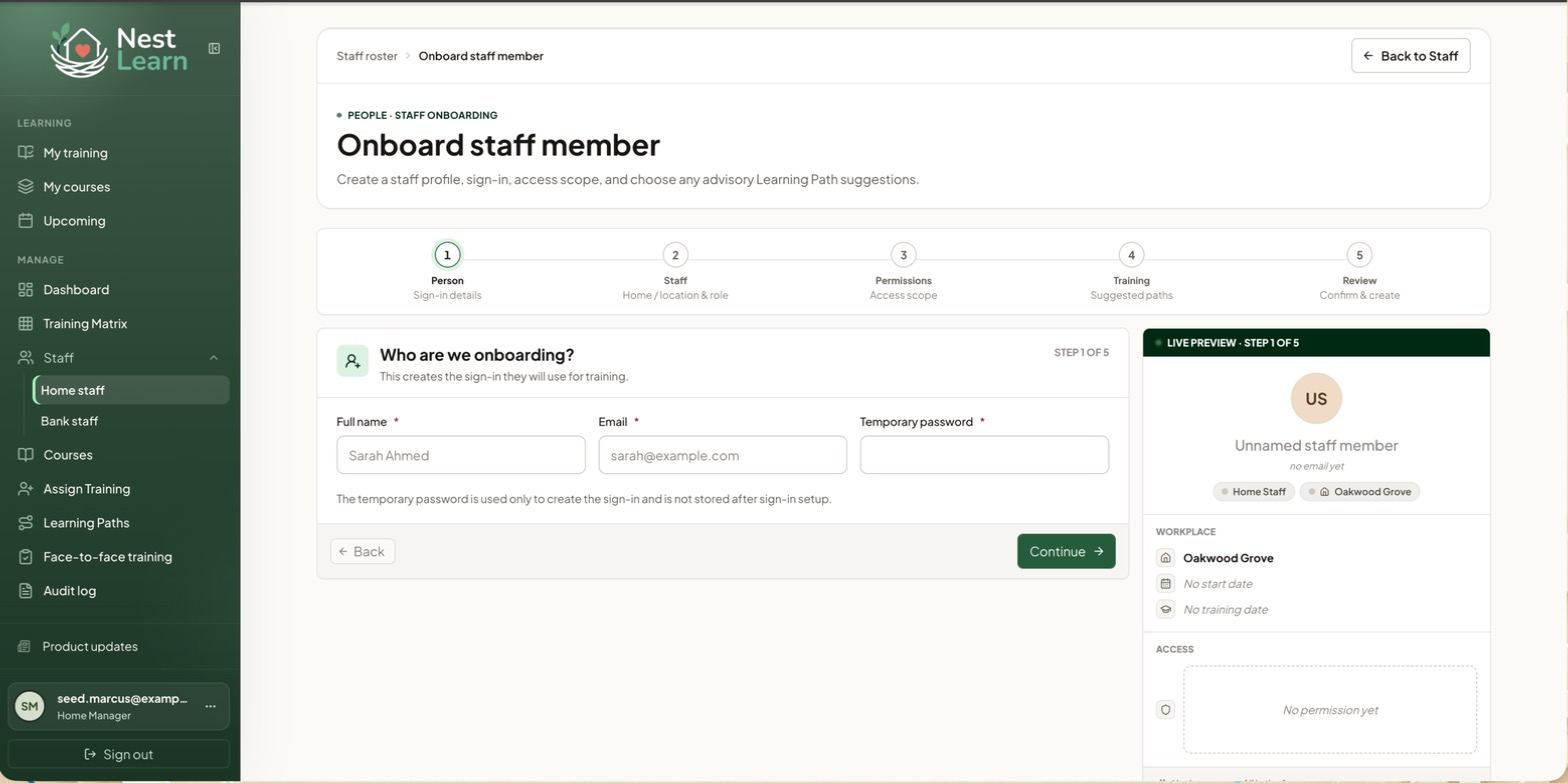
Create the staff profile
| Step | What you set |
|---|---|
| 1. Person | Full name, email and a temporary password for their first sign-in |
| 2. Staff | Home or location, job role, Employment start date and when to make training available |
| 3. Permissions | Their access scope |
| 4. Training | Tick any suggested Learning Paths you want to assign now |
| 5. Review | Confirm the email address, then create |
Suggested Learning Paths are optional. Leave them unticked if you don't want to assign them now.
Check the training dates
Under Staff, check Make training available from as well as Employment start date. Training can be made available before employment starts.
Check the email address before you finish
At the Review step, Nest Learn shows you the email address it will use. The account can't be created until you confirm it.
- Check the details, including the email address against the one you were given.
- Tick I confirm the Staff Member's email address is correct.
- Select Create staff member.
- Find the person in the staff list and check their profile and training.
Sharing login detailsWelcome emails depend on your organisation's settings. When enabled, eligible frontline staff can receive their login details by email, normally about 30 minutes after onboarding. Emails to people with management permissions do not include a temporary password. If login details are not being emailed, share them securely. Creating the account does not confirm that an email has been sent.
An existing senior manager needs their own training profile
For an existing senior manager who needs their own training profile, use the existing manager workflow in the senior manager overview.
Related help
Updated about 3 hours ago