

Permissions
Manage user access and invite administrators who do not need a training record.
Permissions is Provider Senior Manager only. It controls who can sign in, what they can do, and which Homes they can manage.
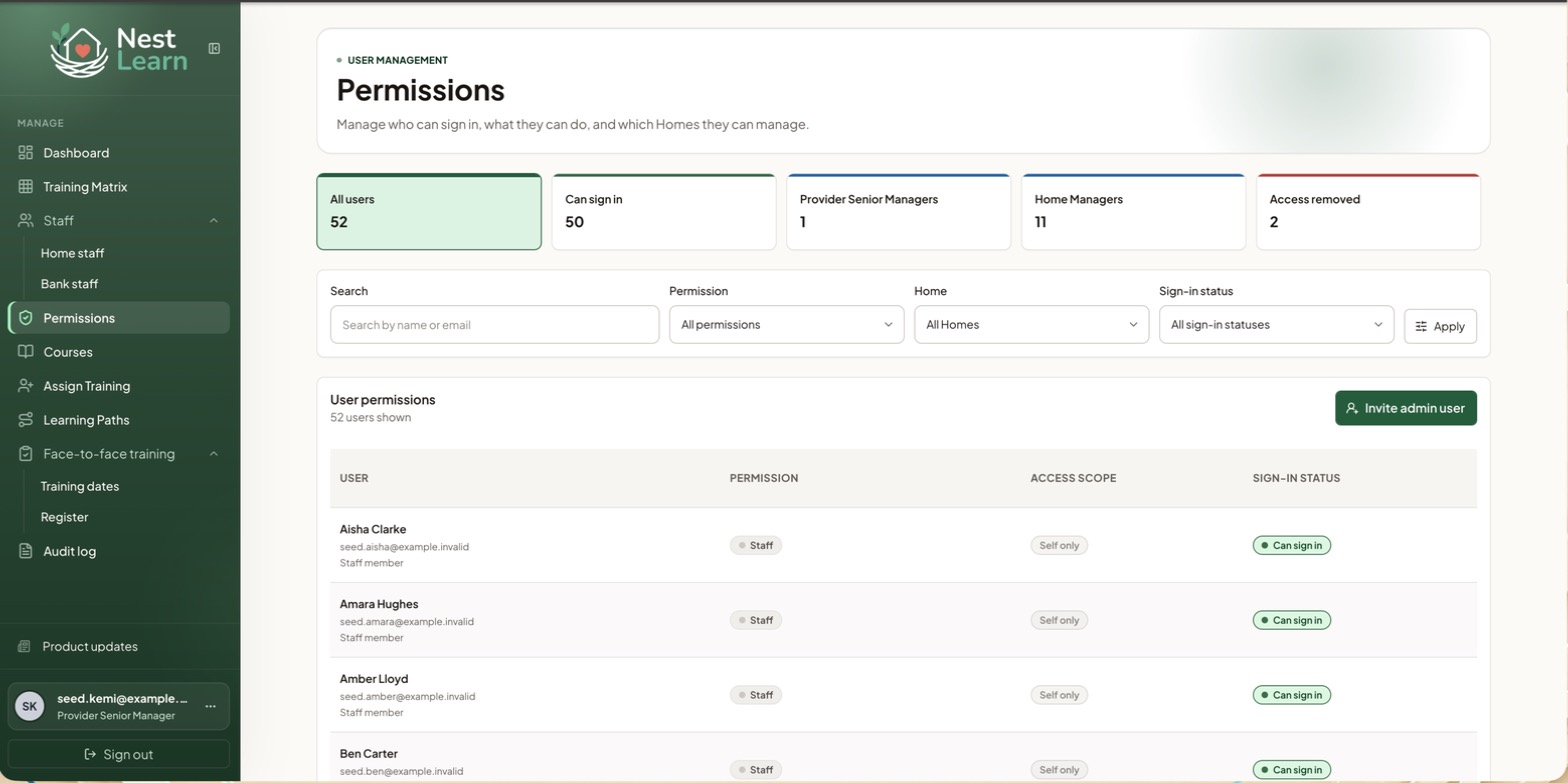
Five cards across the top: all users, how many can sign in, how many Provider Senior Managers, how many Home Managers, and how many have had access removed.
Filter by permission level, Home and sign-in status. Each row shows the person, their permission, their access scope and whether they can currently sign in.
The three permission levels
| Level | What they can do |
|---|---|
| Provider Senior Manager | Manage training assignments, Learning Paths, Courses and users across the provider |
| Home Manager | Manage staff training for selected Homes |
| Staff | Sign in and complete their own training; cannot manage other staff |
Inviting an admin user
Invite admin user creates a sign-in for someone who needs to manage or support training without a training record of their own, such as a head-office administrator.
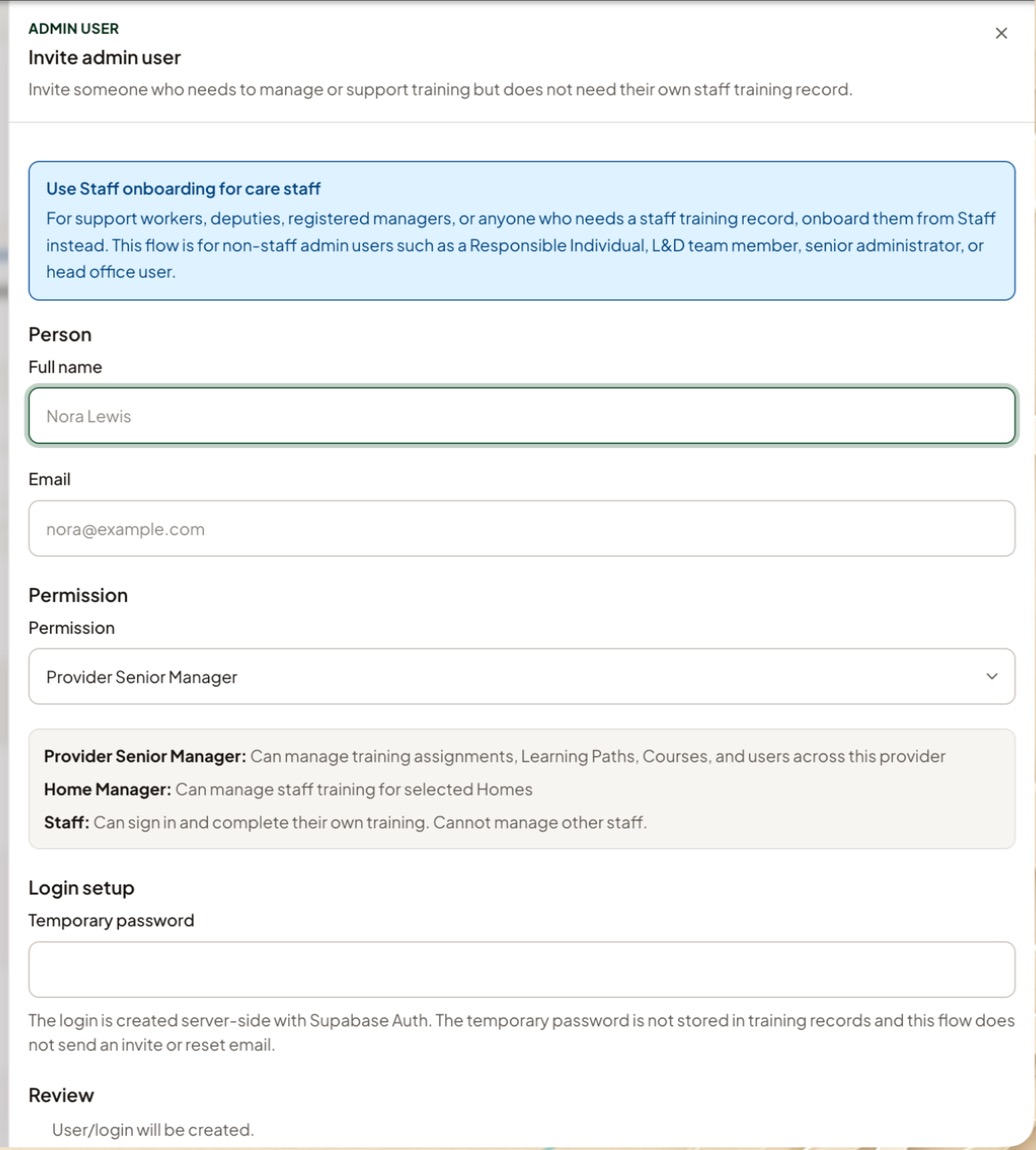
- Select Invite admin user.
- Enter their name and email, choose the permission level, and set a temporary password.
- Check the details and create the account.
Use Staff onboarding for care staffSupport workers, deputies and registered managers need their own training record. Onboard them from Staff; the admin invitation flow does not create a training profile.
Share the login details securelyThis flow does not send an invite or reset email. Share the temporary password with the person securely.
Related help
Updated about 3 hours ago