

Learning Paths
Create Learning Paths and review how changes affect existing learners.
Provider Senior Managers can create and edit Learning Paths as well as assign them. Open Learning Paths under Manage to get started.
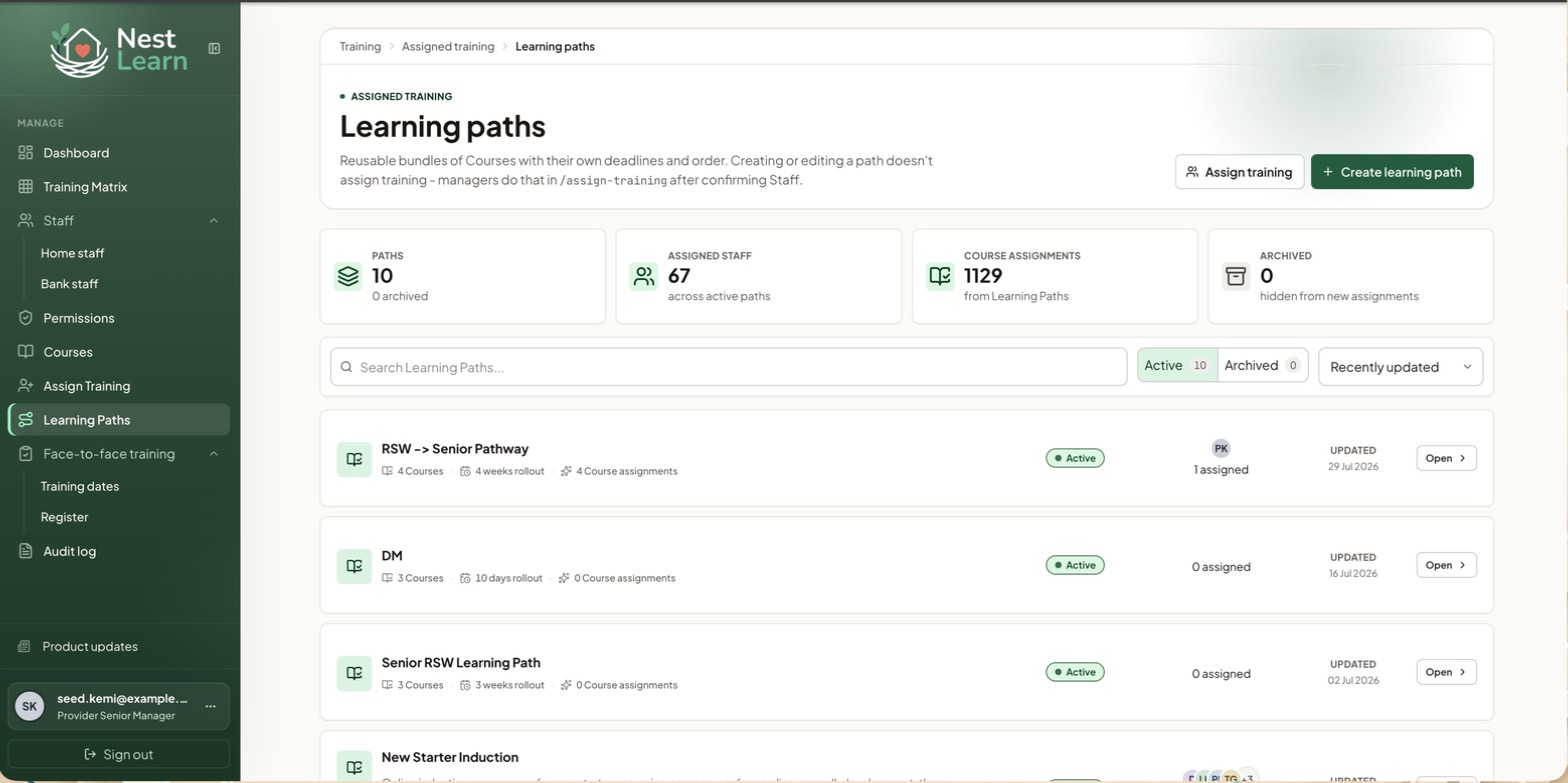
Create a Learning Path
- Select Create learning path. Under Details, enter a name and a short description that managers will recognise when assigning it.
- Under Courses, add courses and check each Due after assignment value. Arrange the display order. You can also add courses later.
- Under Review, check the path and select Save Learning Path.
Creating a path does not assign itCreating a path makes it available to assign. Use Assign Training to give it to staff. The course order is for display; it does not stop learners opening later courses first.
Changing a path that's already assigned
Check the impact on current learnersAdding a course to an existing path can also create assignments for its current learners.
Adding a course
Check Apply to assigned Staff before saving:
| Choice | Effect |
|---|---|
| Future assignments only | Leaves current learners' assignments unchanged |
| Current incomplete Staff for this Course | Applies the course to current path learners who lack a valid completion |
| Everyone assigned now | Applies the course across people currently assigned to the path |
Read the impact preview and affected staff list, then select Add.
Removing a course
When removing a course, check the option about removing associated current assignments. Completed training stays on the record.
Common questions
Will adding a course to a Learning Path give it to current learners?
It depends on the Apply to assigned Staff choice. Check the impact preview before selecting Add.
Related help
Updated about 3 hours ago