

Attendance and certificates
Save attendance outcomes and upload certificates to the right training records.
After a face-to-face session, record attendance and add any certificates needed for the staff training records.
Recording attendance
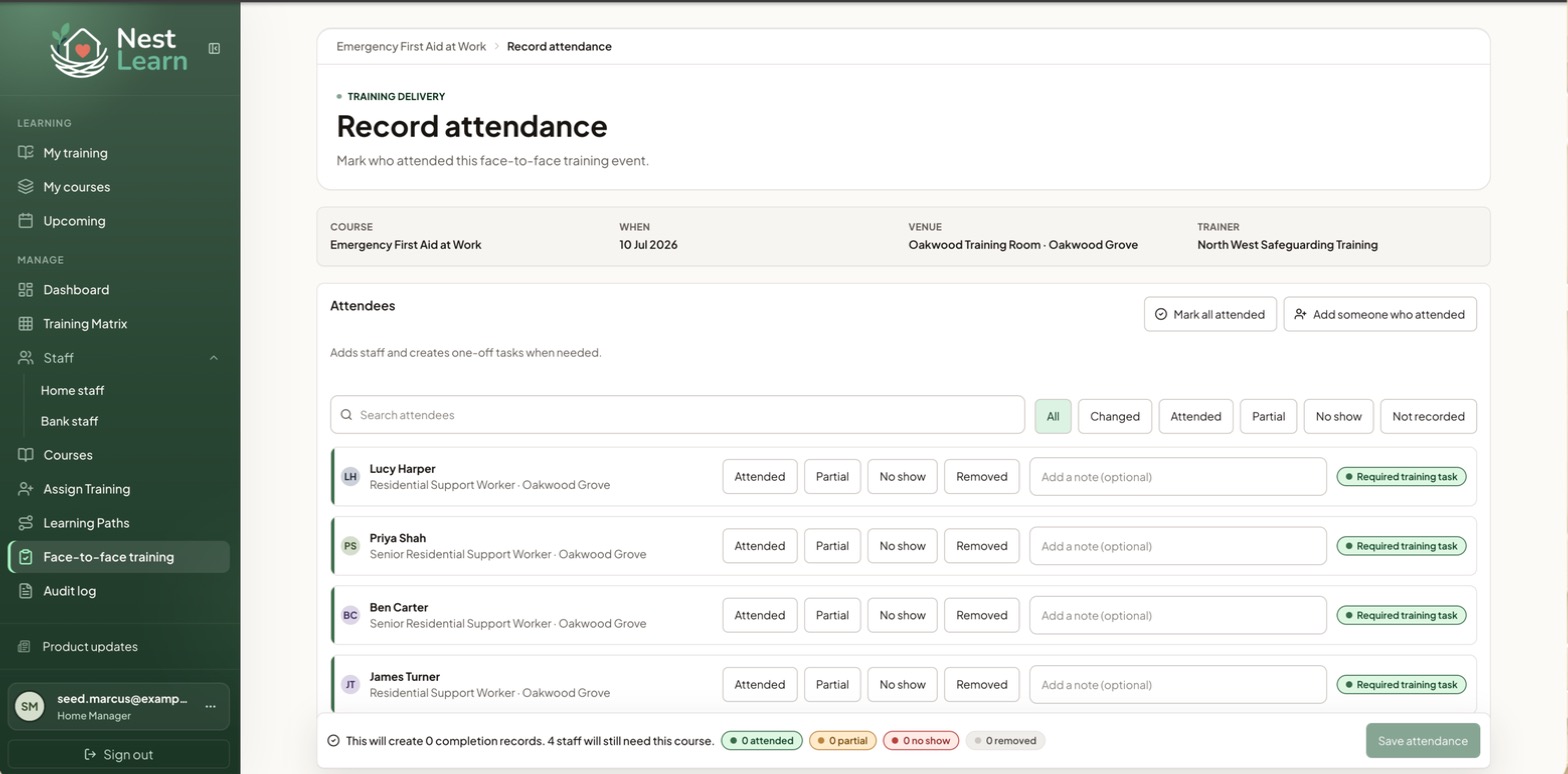
- Open the past training date in Face-to-face training, then select Record attendance. Provider Senior Managers find dates under Training dates.
- Check the course, date, venue and trainer at the top.
- Mark each attendee as Attended, Partial, No show or Removed. Mark all attended does the whole list in one go. Add someone who attended covers people who turned up without being booked, creating a one-off task for them where needed.
- To add a note, open Outcome note (optional) before saving.
- Check the summary at the bottom for completion records and staff who will still need the course, then select Save attendance.
Attendance options
| Option | What it means |
|---|---|
| Attended | They were there for the whole session |
| Partial | They were there for some of it |
| No show | They were booked but didn't turn up |
| Removed | Cancels that person's booking for the course |
Use Removed when the booking should be cancelled, for example, if someone was added by mistake. Use No show when they were booked but did not attend.
Completion and certificate evidenceRecording Attended creates a completion record. If a certificate is still needed, it remains a separate evidence task. Ask another authorised manager to handle attendance and evidence for your own training.
Uploading certificates
The Dashboard lists attended training still needing a certificate under Certificates missing. Attendance can already count as completed training while this evidence is outstanding.
A clear photograph of a paper certificate is fine. Include the whole certificate, with the person's name, course and date readable.
- Open Upload certificates for the training date, using Upload from the Dashboard or the training record.
- Choose a file against each eligible attendee. This picker accepts PDF, JPG and PNG, up to 25 MB per file.
- Check the files marked Ready to save. Use Replace or Discard if you chose the wrong file.
- Select Save certificates. The files attach to the training records when the save succeeds.
- Reopen the record to check the saved attachment.
Remember to save the certificatesThe selected files are waiting to be saved. If you leave before selecting Save certificates, they have not been attached.
Common questions
A member of staff attended but their record still shows outstanding
Check that Attended was saved against the correct person, course and training date. Partial attendance and no-shows do not complete the course. A missing certificate is a separate task; it does not by itself keep attended training incomplete.
Related help
Updated about 3 hours ago