

Dashboard and Matrix
Find training that needs action and review staff training in the Matrix.
Check the Dashboard for work needing action, then use the Training Matrix to review staff against the courses configured for reporting.
Dashboard
The Dashboard brings together training that needs action across your Homes. Use Refresh to update the figures or Schedule training to book a session. Export is currently unavailable.
The four cards
| Card | What it counts |
|---|---|
| Needs attention | Staff with something overdue, expired, due soon or not started |
| Awaiting booking | Assigned face-to-face training with no date set |
| Certificates missing | Attended sessions still needing a certificate uploaded |
| Assignment gaps | Matrix cells where a course should be assigned but isn't |
A second row shows the totals for Overdue or expired, Due soon, Training gaps and In progress.
What needs your attention
A live work queue grouped by what needs doing, each row linking straight to the screen where you do it:
- Book face-to-face training: assigned sessions waiting on a date
- Record attendance: training dates that have passed with no attendance recorded
- Upload certificates: attendance recorded, certificate still needed
- Resolve assignment gaps: Matrix cells where a course should be assigned
Open a row to deal with that task, then return to the queue to check what remains.
Staff needing attention
Staff are listed by training attention, with counts of overdue training, courses not started and bookings needed. Select View to open a profile.
Face-to-face training panel
The panel on the right shows sessions needing scheduling, dates in the next 30 days, past sessions needing attendance and missing certificates. Use the Record or Upload actions to open the relevant task.
Recent activity
Recent recorded changes, with a link to the Audit log.
Dashboard views
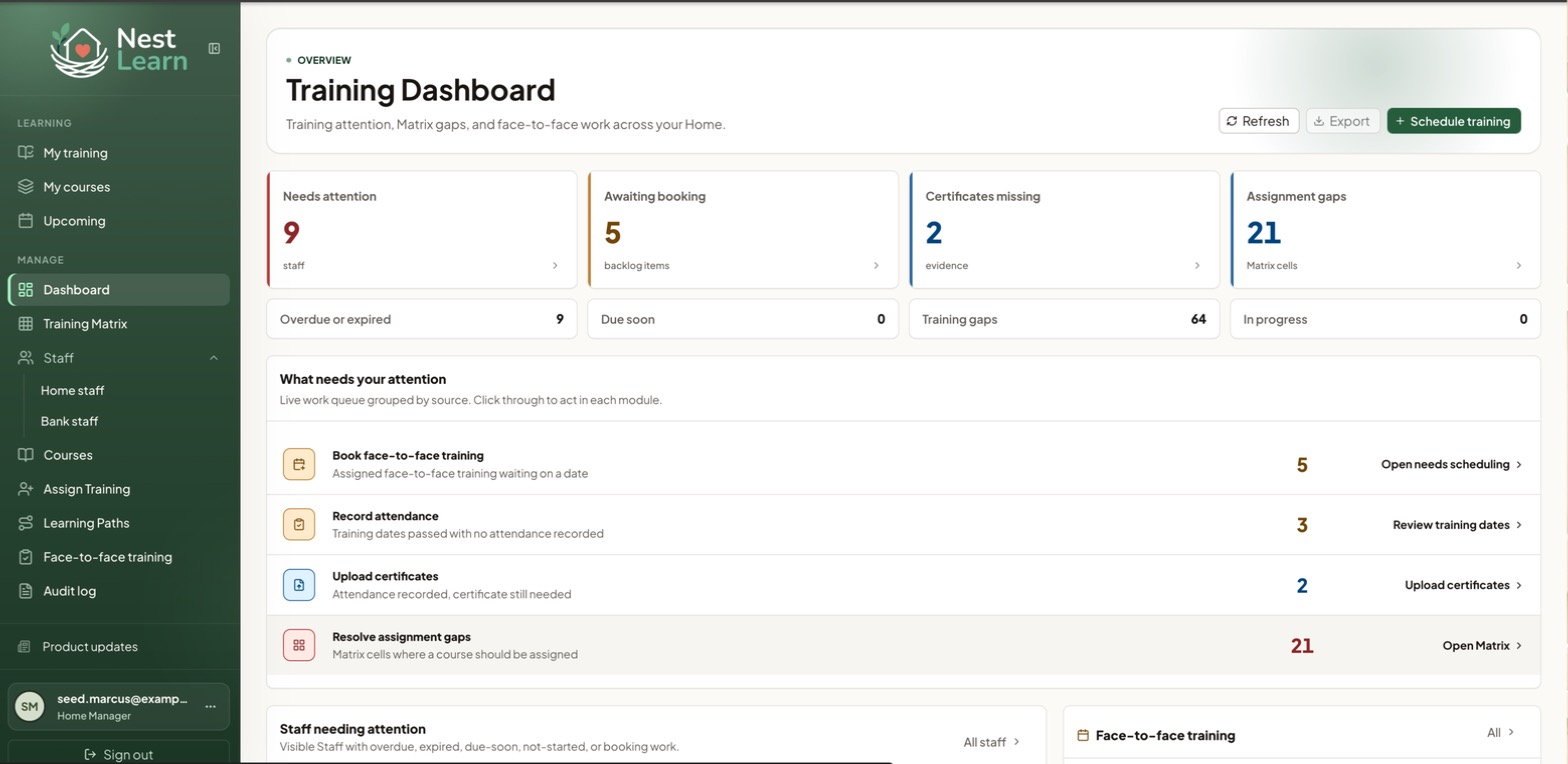
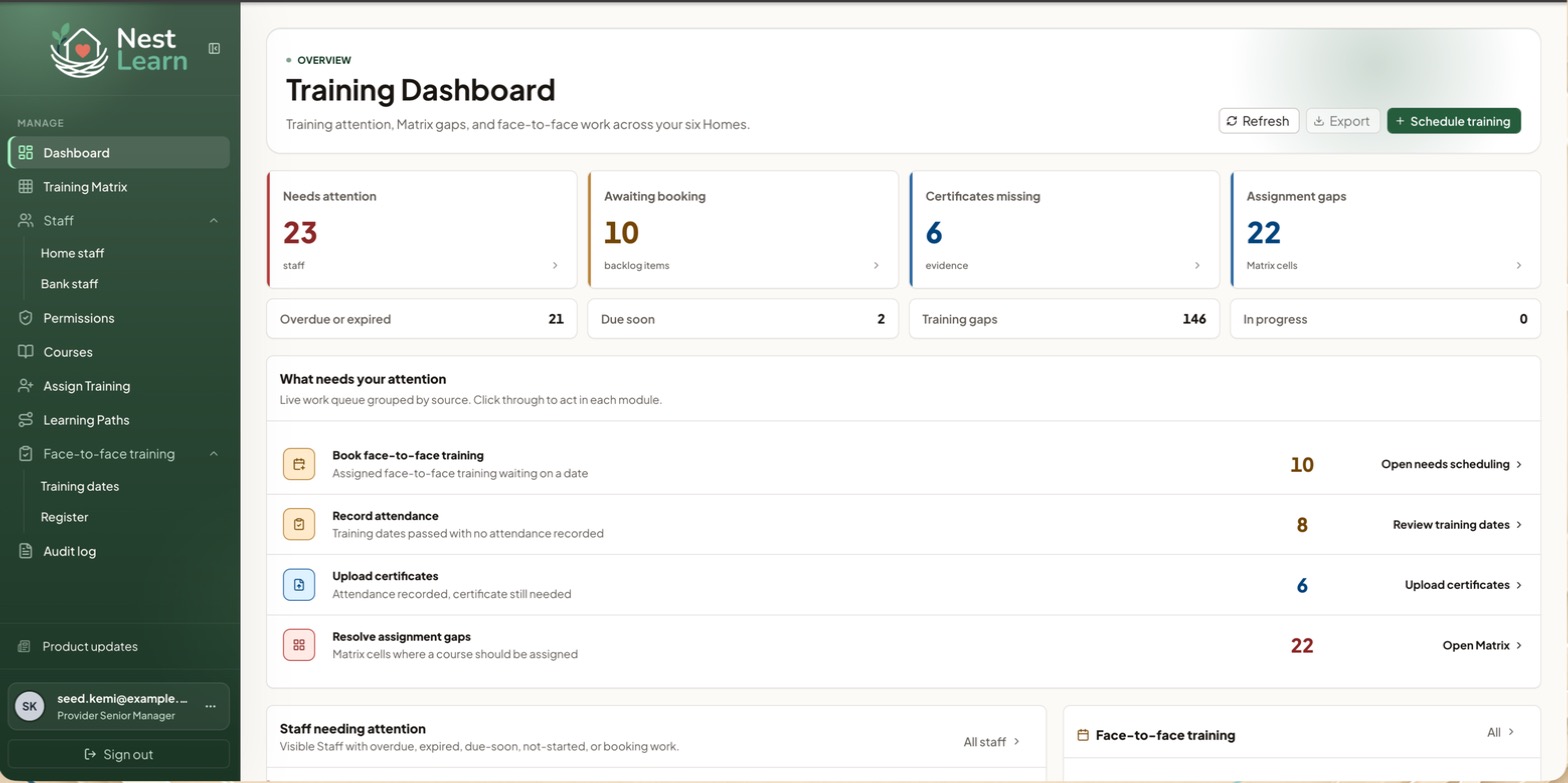
Provider Senior Managers see the Dashboard across the Provider.
The subtitle shows how many Homes are included.
The addition is Home comparison, a table further down the page.
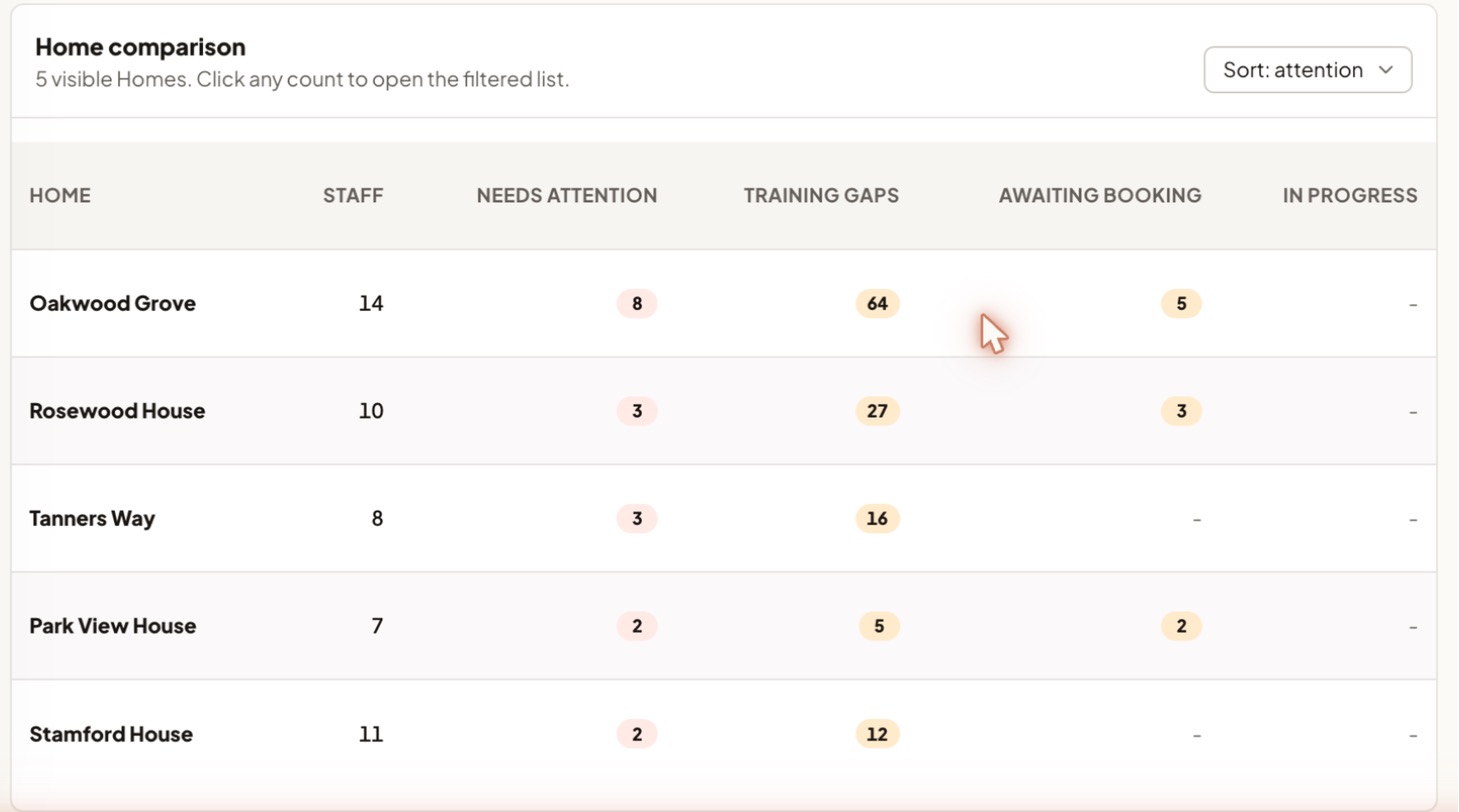
Each Home gets a row showing staff numbers, needs attention, training gaps, awaiting booking and in progress. Sort by attention to see which Home needs you most, and select any count to open the filtered list for that Home.
Training Matrix
The Training Matrix shows active staff against the courses configured for reporting.
Staff run down the left, courses across the top. Each cell shows that person's status for that course, and the % done column on the right gives their overall figure.
Use the status filters to find expired, overdue, in motion or not started training, or assignment gaps. Narrow by Home and job role, then select Apply. The Export button is currently unavailable.
Each course column header shows how many staff have completed it (for example 10/14), so you can spot a course the whole team is behind on.
Assignment gap or not started?An assignment gap means the course is not currently assigned to that person. Not started means it is assigned but the training has not been started.
Matrix views
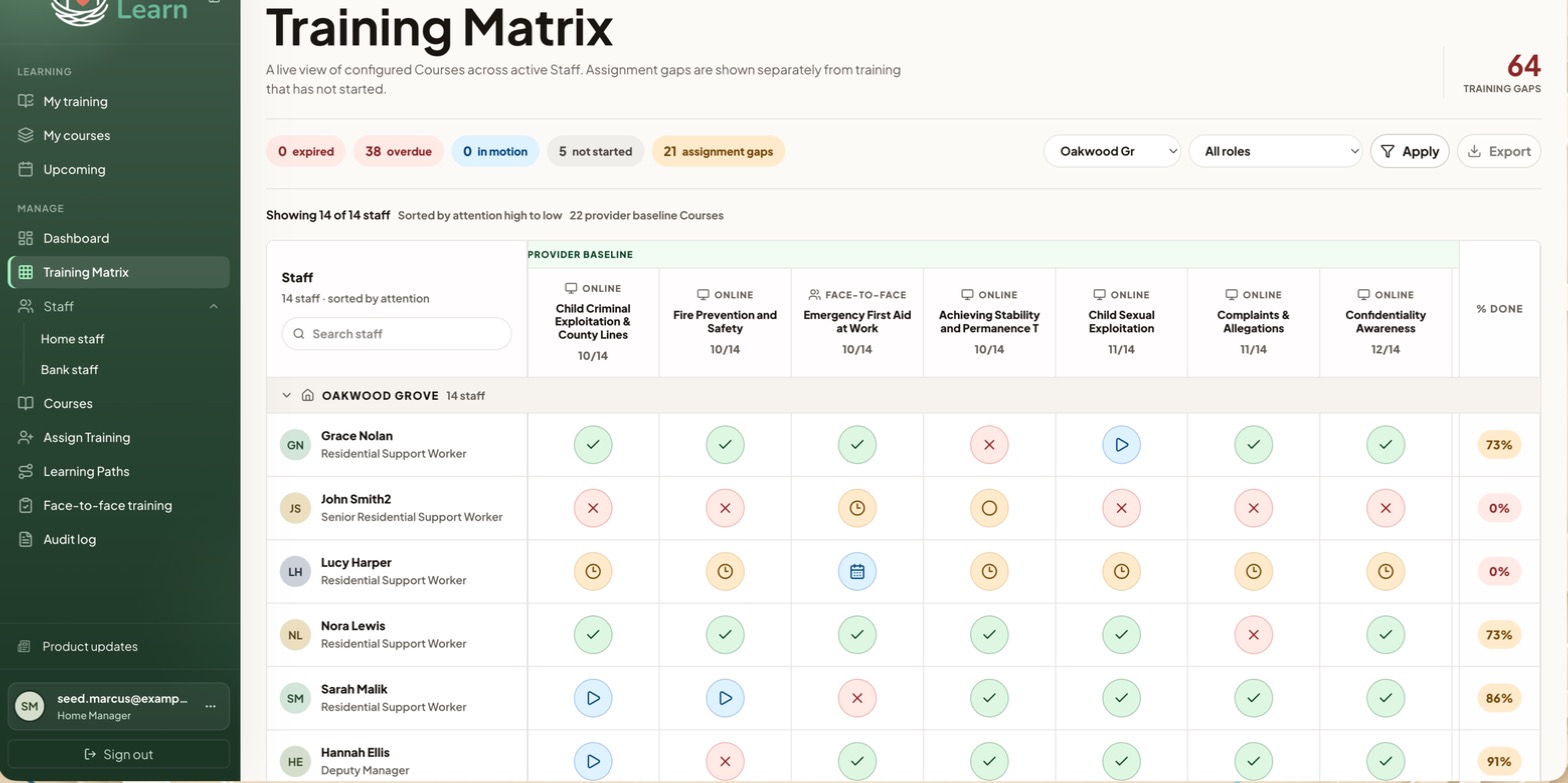
The same grid, across every Home. Staff are grouped under Home headings and each row shows which Home the person belongs to.
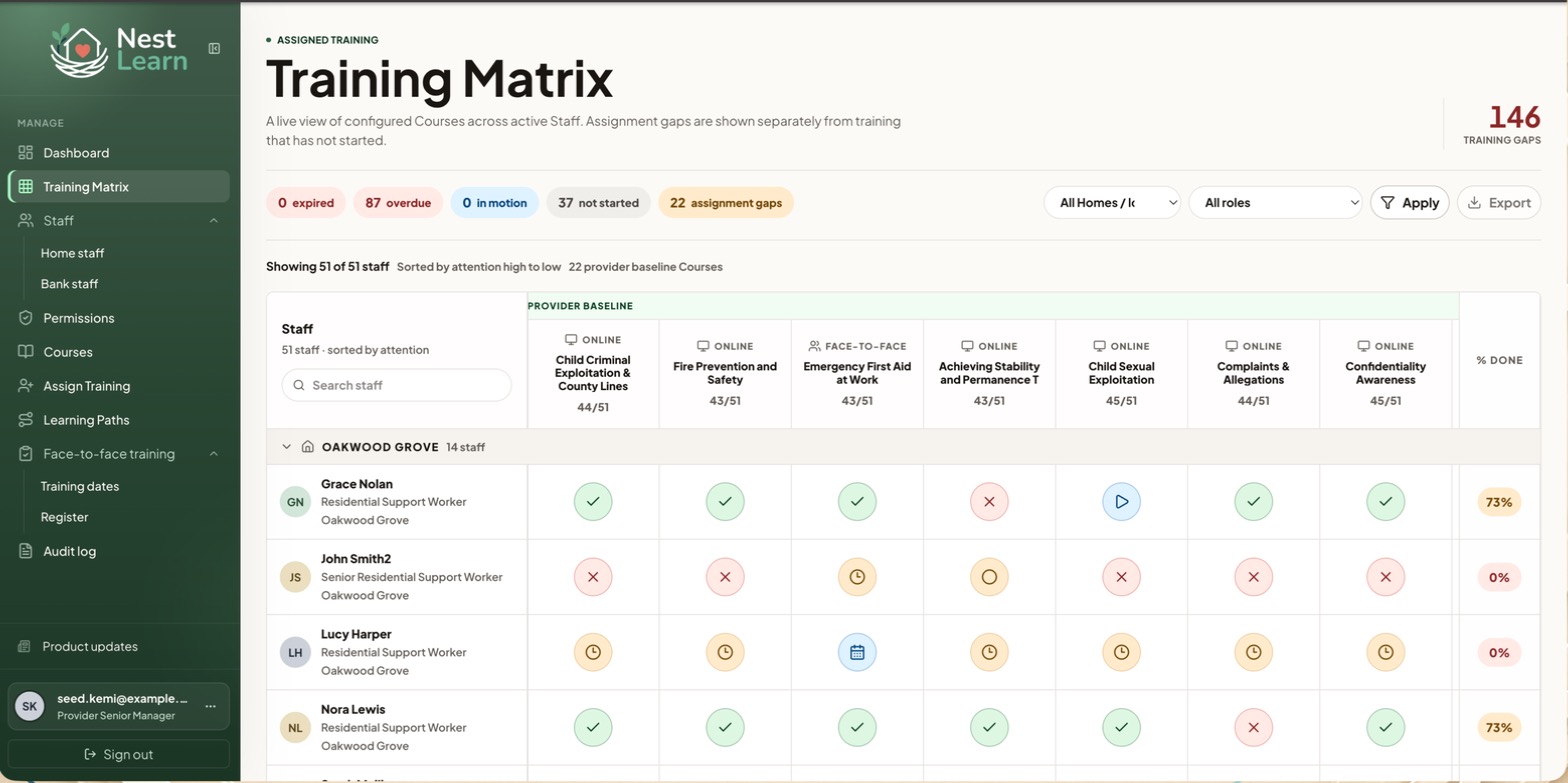
The Home selector defaults to all Homes. Status and job role filters work as described above. Export is currently unavailable on both the Dashboard and Training Matrix.
Provider Senior Managers can choose which courses appear as Matrix columns.
Related help
Updated about 3 hours ago