

Scheduling sessions
Book face-to-face training and check attendees, dates, capacity and booking clashes.
Open Face-to-face training under Manage. Provider Senior Managers then choose Training dates. This page brings together scheduling, attendance and certificates.
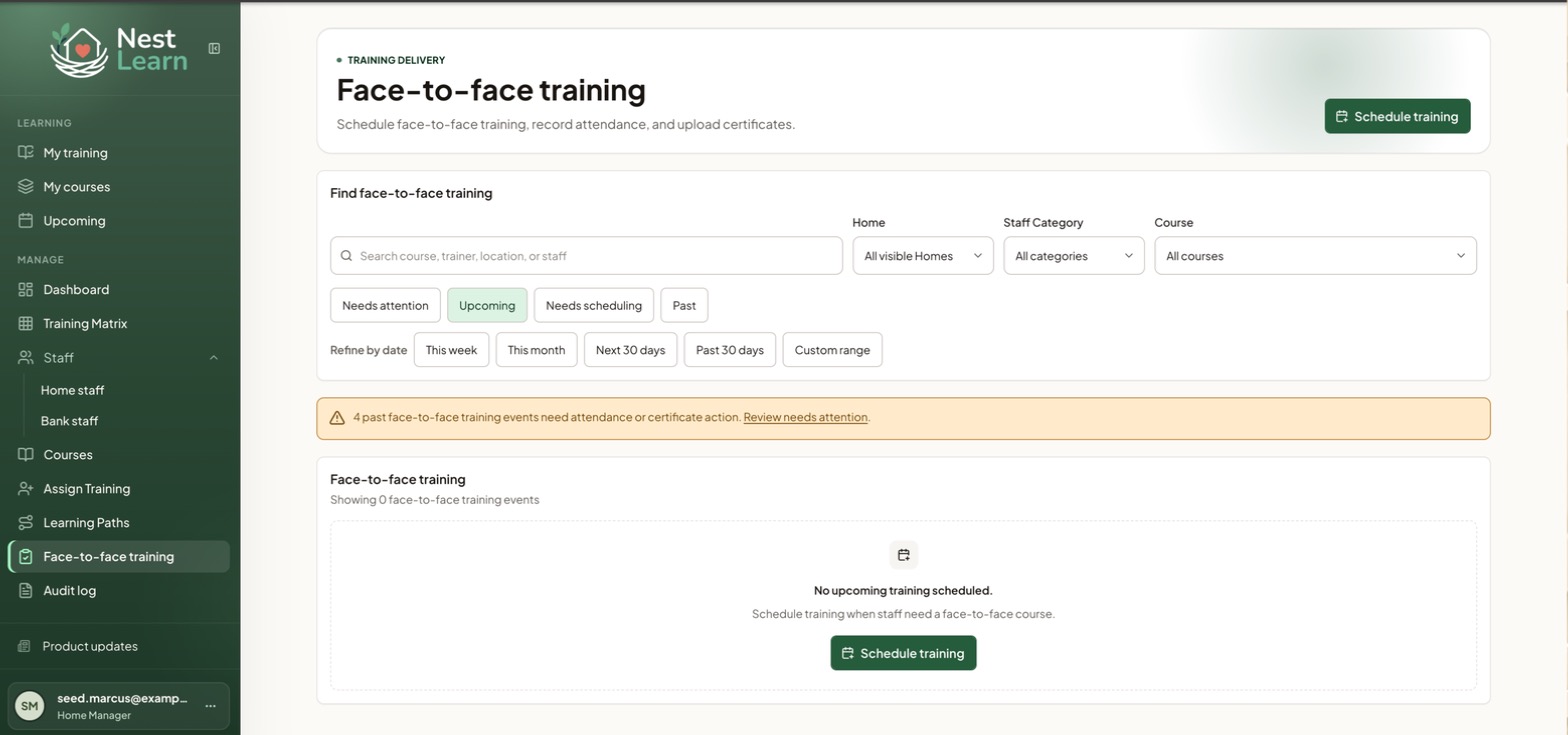
Find a training date
Filter by Home, staff category and course, then use the status tabs:
- Needs attention: anything requiring action
- Upcoming: scheduled and still to come
- Needs scheduling: assigned but no date set
- Past: already happened
Refine further by this week, this month, next 30 days, past 30 days, or a custom range.
A warning banner appears at the top when past events need attendance or certificate action, with a link straight to them.
Scheduling a session
Select Schedule training. The form has four parts, with a Review impact panel down the right that updates as you go.
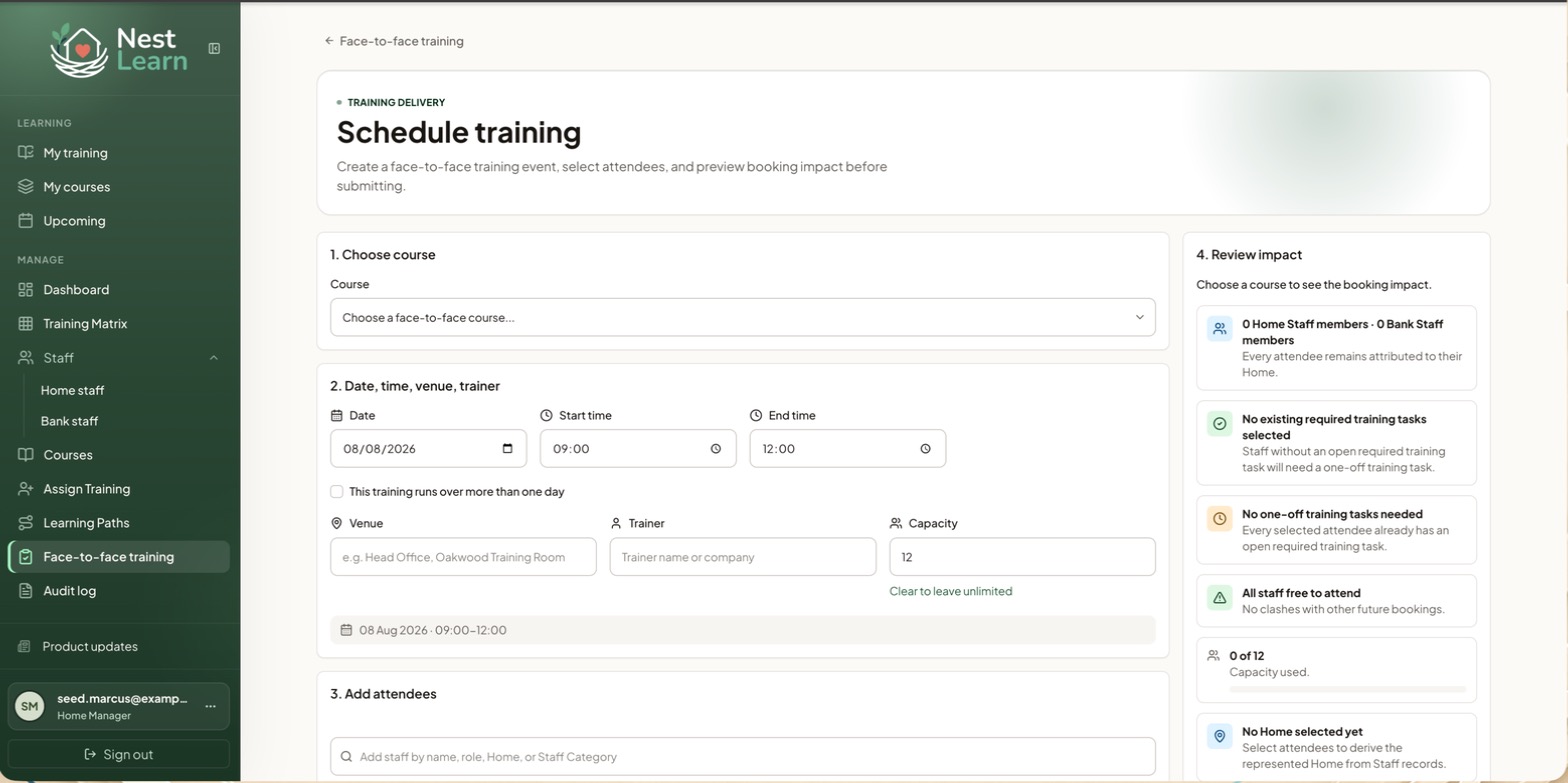
- Choose a face-to-face course.
- Set the date and start and end times. For a session running over several days, select the multi-day option and check both dates.
- Add the venue, trainer and capacity. Clear the capacity for unlimited places.
- Select at least one attendee. Home Managers book Home Staff within their access. The session gets its Home or Homes from their staff records.
- Check Review impact for the selected people, existing assignments, new one-off training tasks, booking clashes and capacity.
- Select Schedule training. Staff should see the booking in My courses and, for a future date, Upcoming.
Booking Bank StaffProvider Senior Managers can also schedule Bank Staff and mixed Home and Bank sessions across the Provider.
Related help
Updated about 3 hours ago