

Your training
Find your courses and understand training progress, deadlines and completion records.
Nest Learn shows you what's due, what you've finished, and any face-to-face training you're booked on.
If you're a manager with your own training profile, you'll find My training, My courses and Upcoming under Learning in your sidebar.
Start with a task
Need help with your login? See Signing in, which also explains how to sign out.
What you can do
My training
My training is your home screen. Check Needs your attention first to see which courses need action.
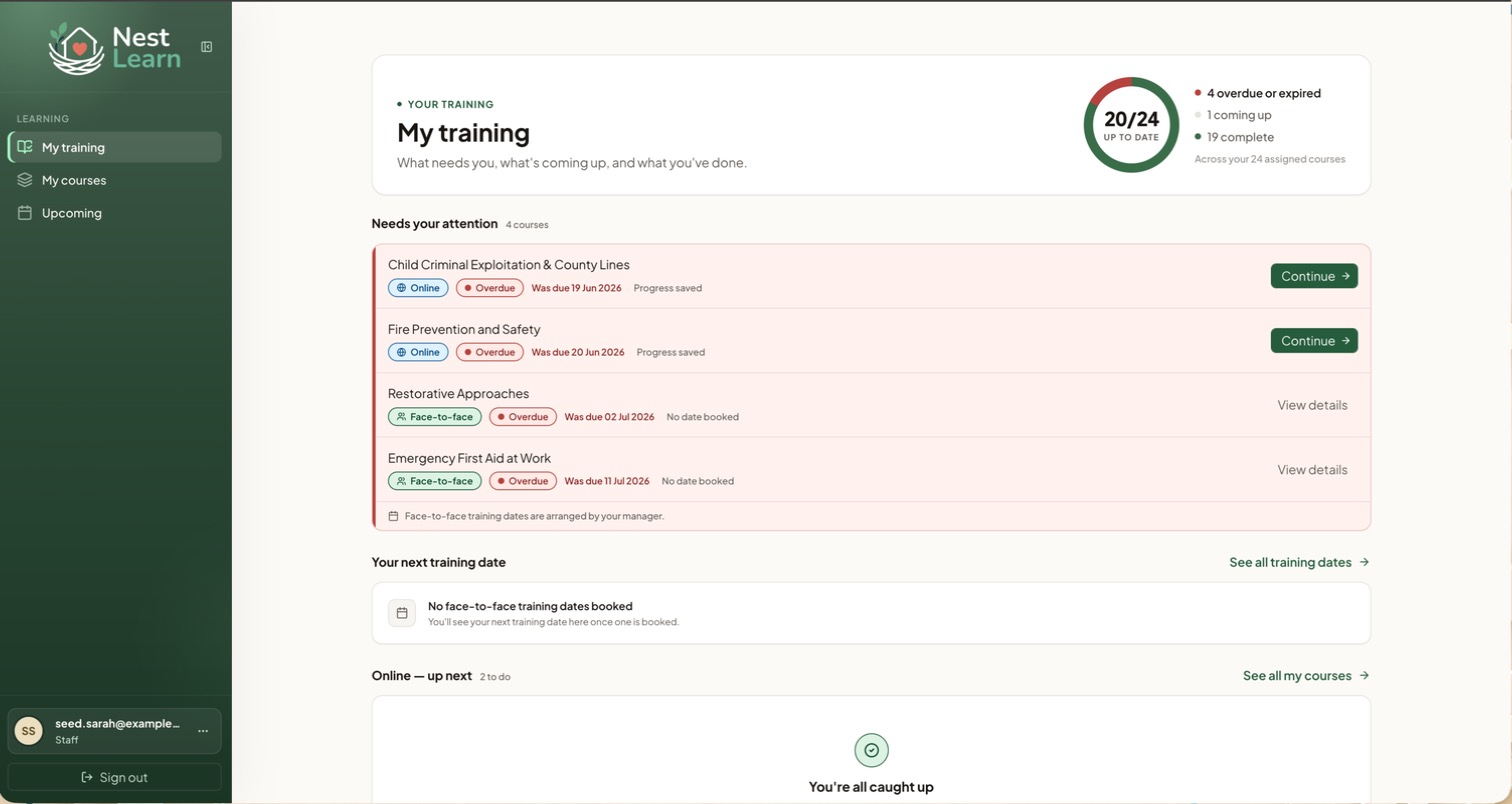
Needs your attention
This panel includes overdue or expired training. It can also show courses due within the next 14 days. Each row shows the course, its type, date and progress.
- For an Online course, select Start, Continue or Renew now, depending on its status.
- For a Face-to-face course, select View details. Your manager arranges the training date.
Your progress ring
The ring summarises your active assigned courses:
| Figure | Meaning |
|---|---|
| Overdue or expired | Past the due date, or a refresher that has lapsed |
| Coming up | Other outstanding training, including booked face-to-face courses |
| Complete | Courses with a current completion record |
Due soon is shown separately for deadlines within the next 14 days. It is different from Coming up.
Up to date can include unfinished coursesThe Up to date total can include courses that are currently on track. Use Complete to see how many courses you've finished.
Your next training date
Shows the next face-to-face session you're booked on. If nothing is booked you'll see No face-to-face training dates booked. The face-to-face bookings guide explains where to find the time and venue.
Online up next
Shows other online courses waiting for you.
Check Needs your attention as well, even if Online up next says You're all caught up.
Completed
Your completed training appears newest first. Select the certificate icon to open a record. See Certificates for help viewing the files.
My courses
My courses lists your assigned courses and completed training records.
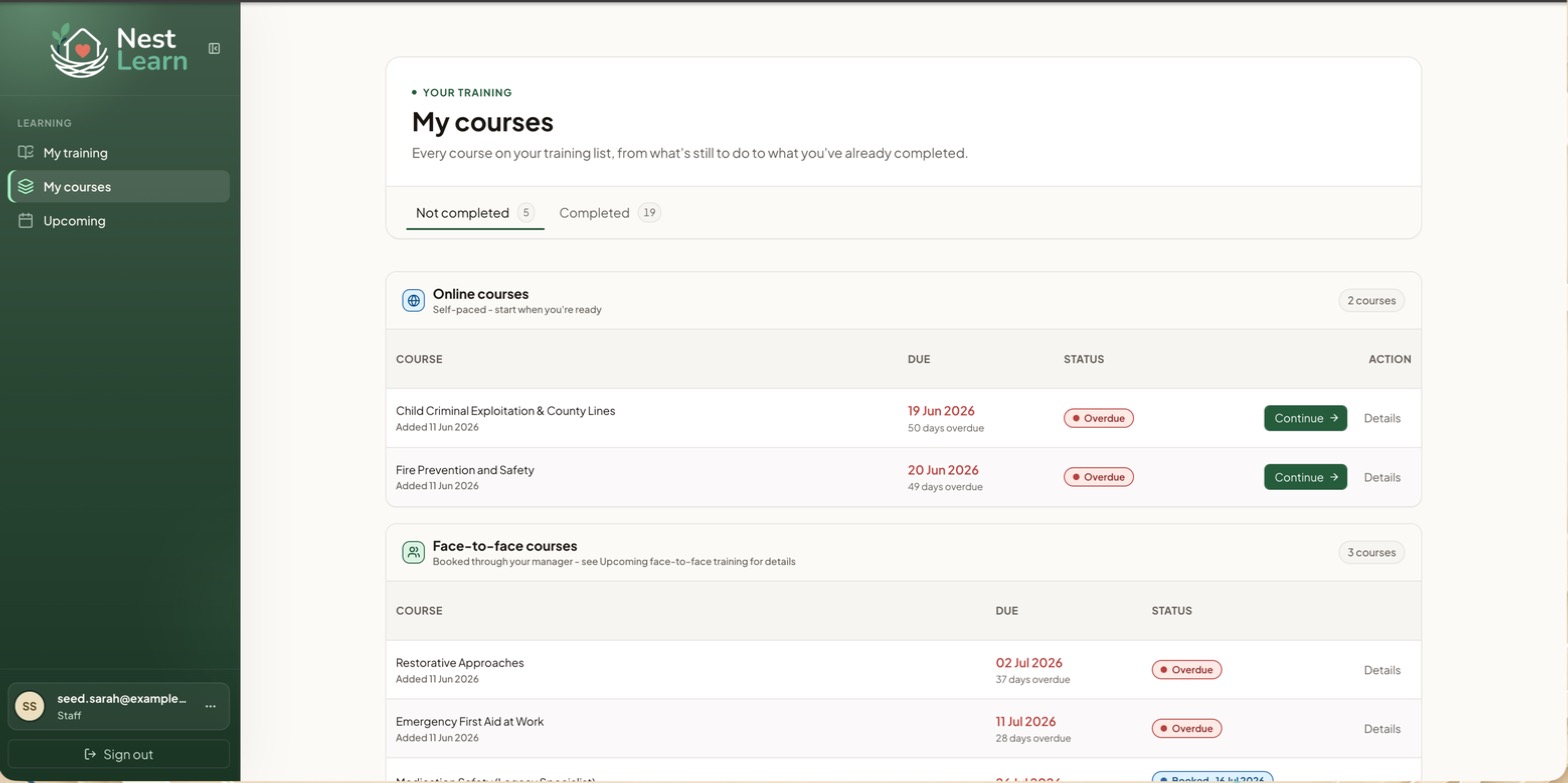
Use the two tabs at the top:
- Not completed shows courses still to do, split into Online courses and Face-to-face courses.
- Completed shows finished training, with the date and a certificate record.
Each row shows the course name, when it was added, the due date and a status badge. Overdue courses show how many days late they are.
Course details
Select Details on any row to see a summary. Choose the course type below to see what to look for.
The details show Type, Status, Date added, Due and Progress. Select Start, Continue or Renew now to open the course, depending on its status.
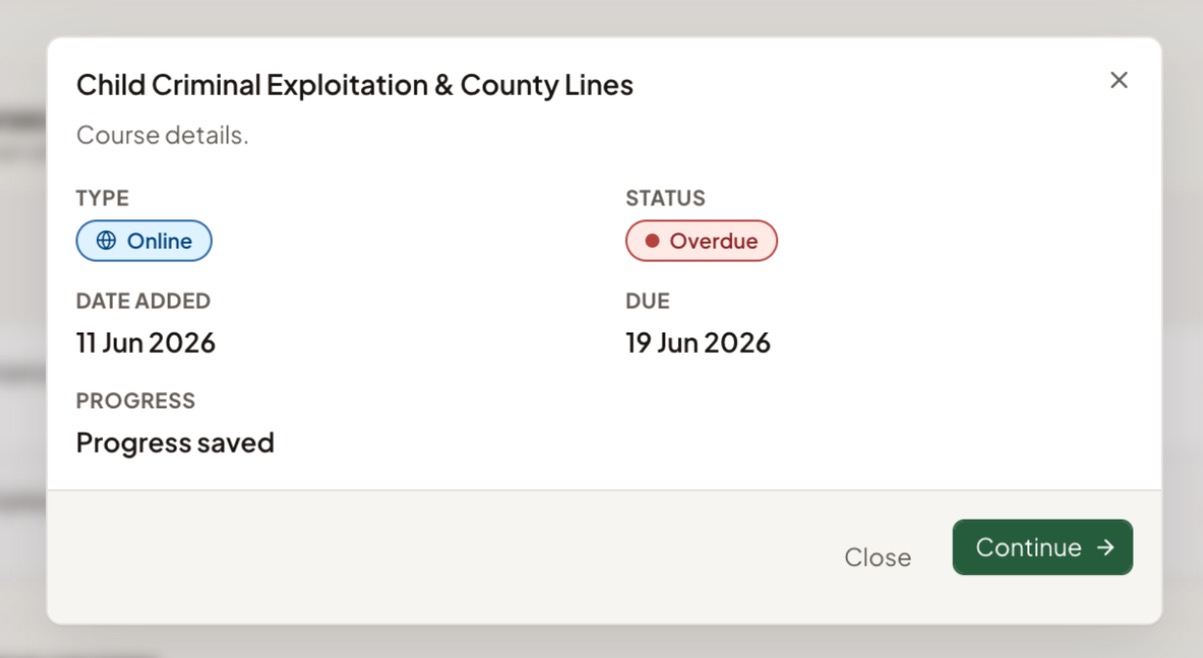
The online courses guide explains how to start, pause and resume.
The details show Type, Status, Date added and Due. If you've been booked onto a date, you'll also see Training date, Time and Venue.
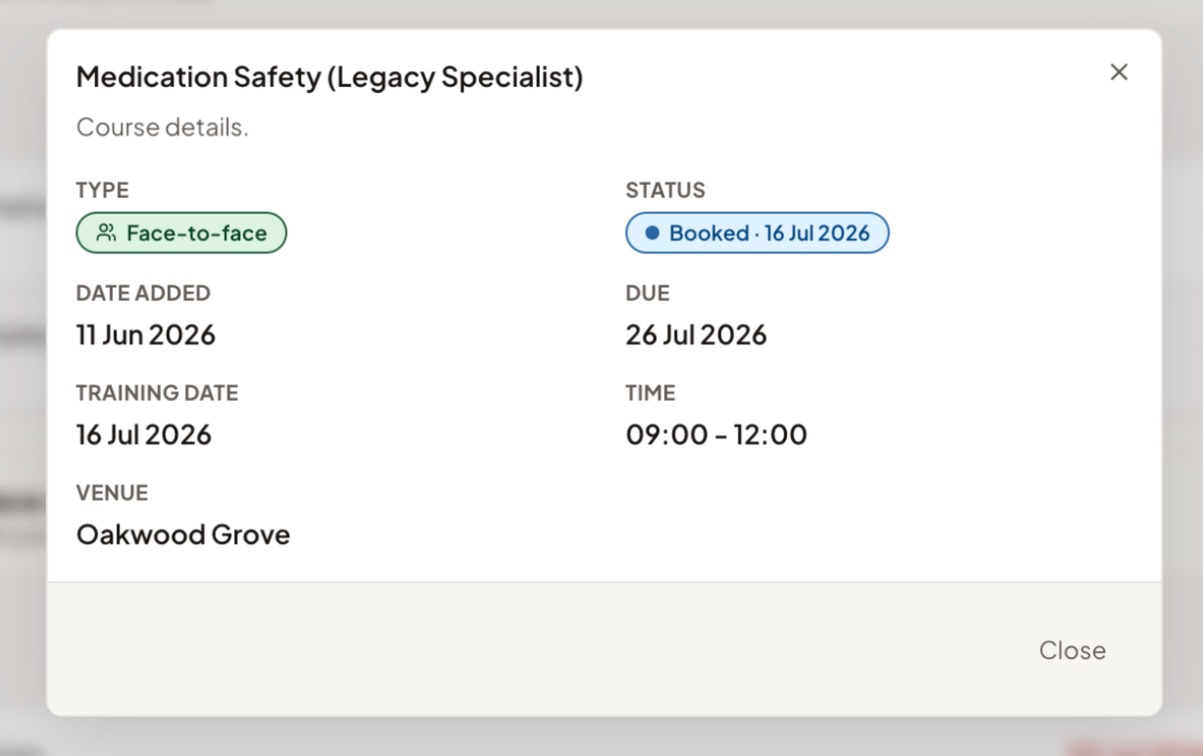
Check Upcoming for your booked dates, or read the face-to-face bookings guide.
Common questions
A course I've finished still shows as overdue
Online courses update as soon as you complete them. Face-to-face training is marked off by your manager after the session, so there may be a short gap.
I can't see a course I've been told to do
Check both tabs in My courses. If it isn't in either, ask your manager to check the assignment and when it should become available.
Updated about 4 hours ago